
This guide is for Hauliers that utilize the ASolute system which is currently integrated with LinkHaul. In this guide, the Lister is from Linkhaul, and the Haulier is using the ASolute platform.
For the integration to take place, the haulier have to be an ASolute User and should have all the integration settings implemented beforehand. These settings will be implemented together by LinkHaul and ASolute systems staff.
Important Notice: Due to restrictions in mapping the delivery place, it is important to make sure that the Delivery Place Name and Address are the same to the ones in ASolute system.
LinkHaul ROT (Job Post) creation and sync to ASolute Haulier
Below is the Sample ROT that is Submitted from LinkHaul: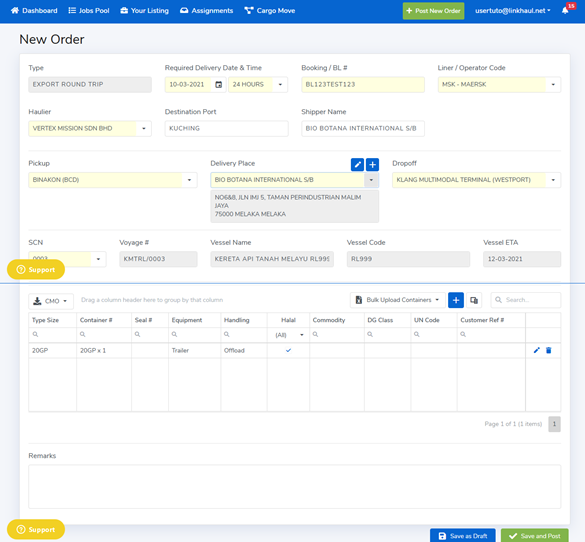
An Email notification will be sent to the parties invloved once the Lister has assigned the Job in LinkHaul to the ASolute Haulier.
Please refer below for the ASolute ROT(Job Acceptance tab) to view te Job that has been assinged via LinkHaul - ASolute Integration.
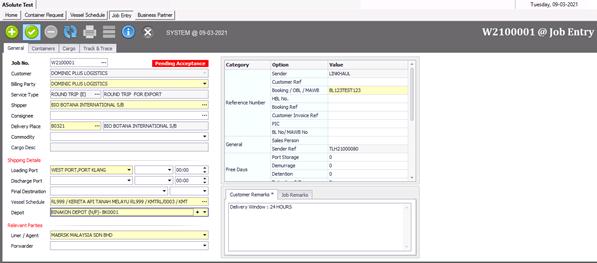
The fields that will be automatically populated via the integration are as per below:
- Customer
- Billing Party
- Service Type
- Shipper/Consignee (By default will follow Delivery Place)
- Delivery Place
- Loading Port
- Vessel Schedule
- Depot
- Liner/Agent
- Remarks
- Booking/BL #
- Sender
- Sender Ref
Attachments from the LinkHaul system can be found under the event "File"

Missing Details - Delivery Place
In some instances, the delivery place might not appear automatically in the Job Acceptance screen in ASolute, user can go to the container level and view the corresponding delivery place and select manually from the Job Entry screen or insert new details if the delivery place is not already available in ASolute system.
Please refer to the example below to locate and confirm the Delivery address from LinkHaul that did not successfully map from LinkHaul to ASolute:
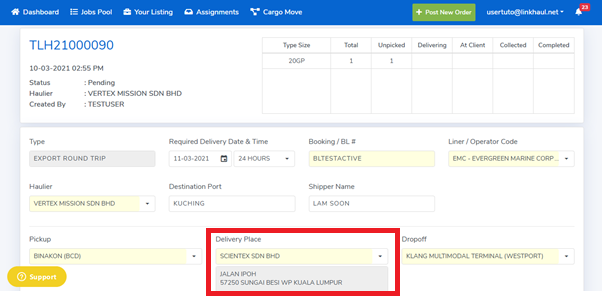
This is the LinkHaul Job Summary (Lister). Notice that the Delivery Place in LinkHaul is SCIENTEX SDN BHD highlighted in the red box.
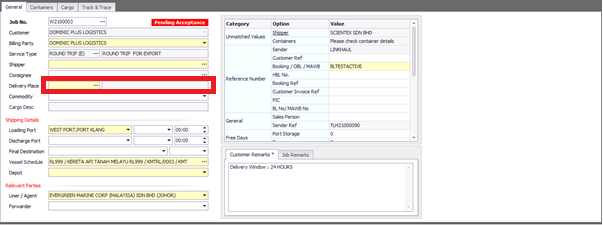
The delivery place highlighted in the red box is missing or was not mapped due to not being similar from the data provided in both systems.
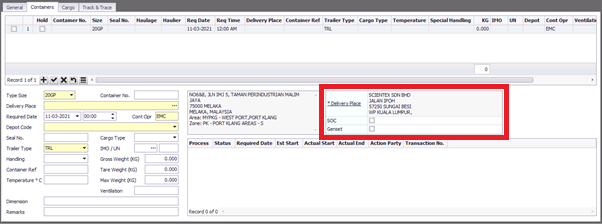
Check the Container Level tab, highlighted in the red box, User can select this delivery address to map it manually to the correct address in the system.
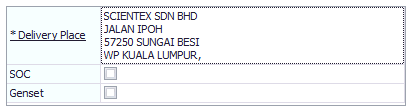
User is required to click on the underlined Delivery Place button to map the address to an available address in the ASolute system.
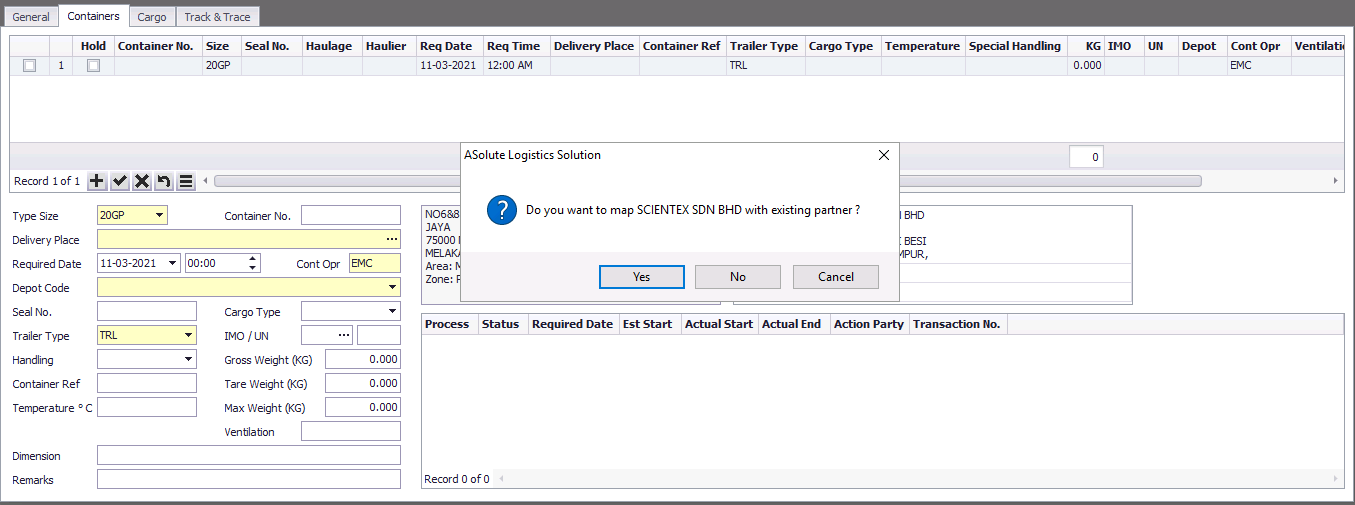
Upon clicking the "*Delivery Place" button, a window will pop up. This window requires confirmation from User to enable the address to be mapped to an existing partner. By Clicking "Yes", a window will popup consisting a list where the user can select the available delivery place in the system.
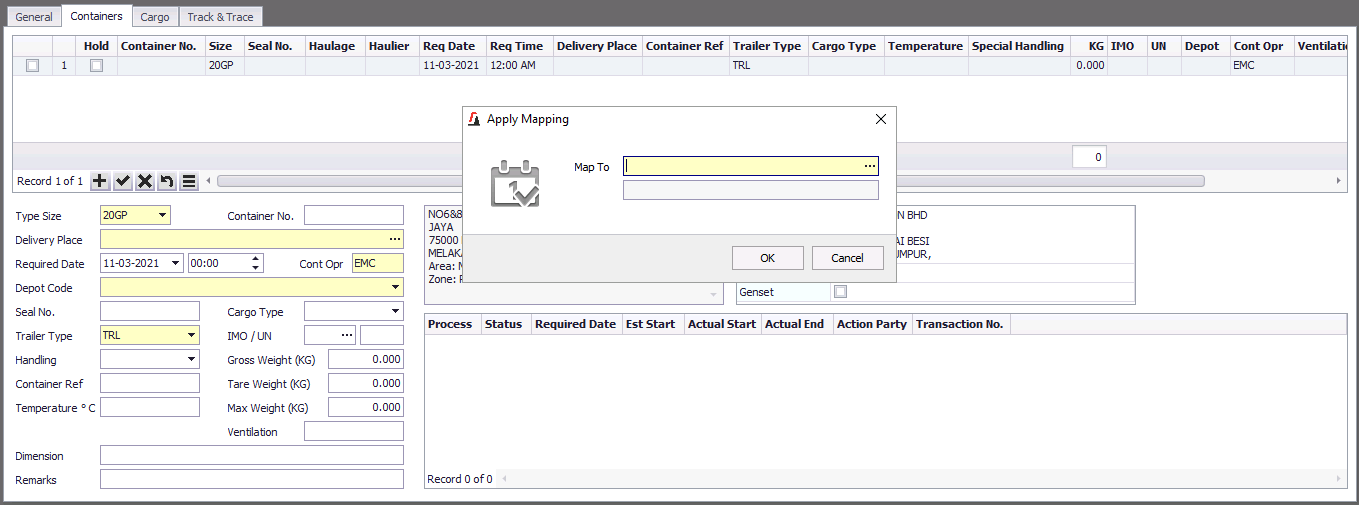
User to select the highlighted input field to view or search the delivery place that is in the ASolute system.
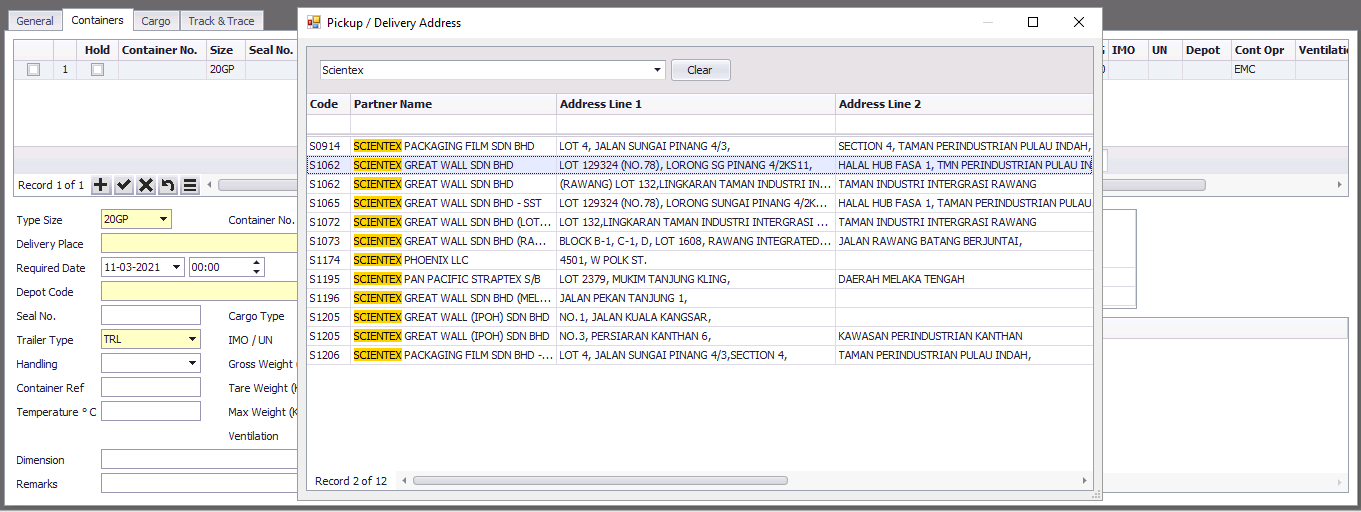
Upon selecting the preferred Delivery Place that is in the list, a message will pop up meantioning that the record has been successfully saved in the system.
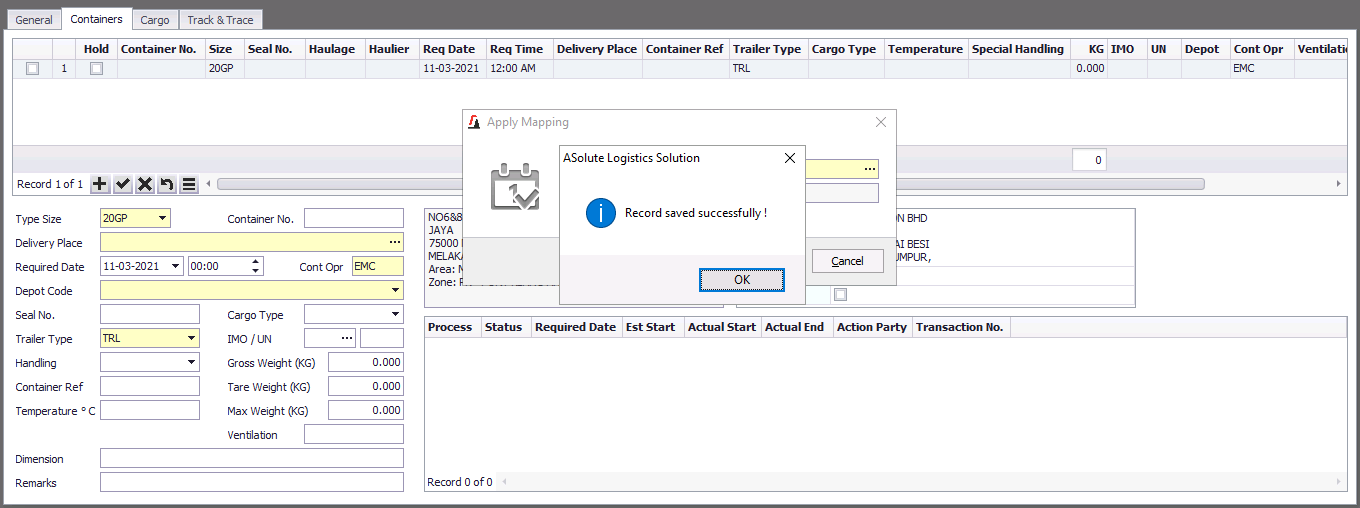
A successful prompt message like above confirms that further Job Postings with the same address will automatically be listed correctly in the Job Acceptance tab in ASolute system.
Missing or Incorrect Details - Shipper/Consignee
The Shipper/Consignee might be automatically assigned in ASolute to the same input as delivery place. Users are advised to confirm and if required user to assign the shipper/consignee manually.
*LinkHaul and ASolute are working together to implement shipper/consignee direct mapping from LinkHaul to ASolute. This feature will be available in the near future.
Missing Details - Discharge Port
Destination Port(Export Job Only) in LinkHaul is yet to be integrated in ASolute systems, therefore the discharge port field in ASolute might appear blank.
*LinkHaul and ASolute are working together to implement Discharge Port direct mapping from LinkHaul to ASolute. This feature will be available in the near future.
Missing Details - Attachments
Attachments in general can be found under the track and trace tab in Job Entry at the ASolute system. Attachment are some times listed under "ORDER CREATED" event.

Attachments under the event "ORDER CREATED".
Container Movement - Haulier as ASolute User and Lister as LinHaul User
Upon succesfull Job acceptance in ASolute system, Haulier is now able to update their container movement by assignning driver and prime mover together with the corresponding time when the event occured. Haulier will use the "Haulage Command Center" screen to assign and update the container movement.
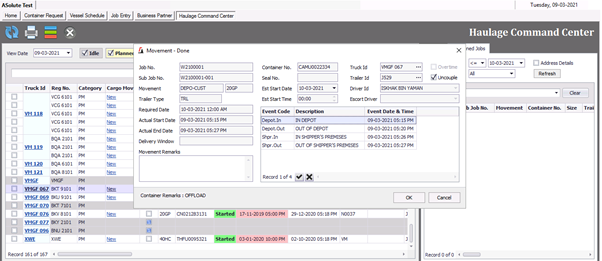
Any updates that are made in ASolute system by Haulier regarding the container movement should almost instanty reflect in LinkHaul system. The picture above shows the ASoute system example when updating the container movement.
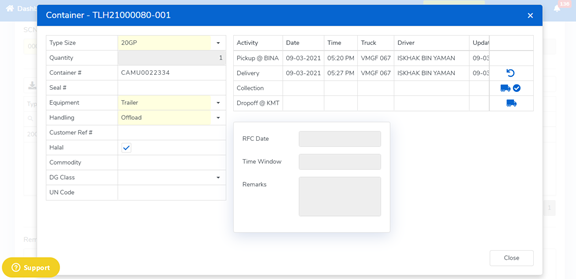
Similarly, all container movement updates will be updated accordingly in LinkHaul system. The event time will follow the same time as Asolute system. Meanwhile the updated time is the time when it was updated in LinkHaul system. The picture above shows the LinkHaul system example when the data from ASolute is synced.
Job Completion
Upon the completion of movement in ASolute system, subsequently all movements will be updated in LinkHaul until the Job is completed. Once the Job is Completed, and email will be send to the relevant parties confirming that the Job has been completed.
Job Completion in ASolute will highlight that the movement has been completed and the invoice has been generated accordingly in the system.
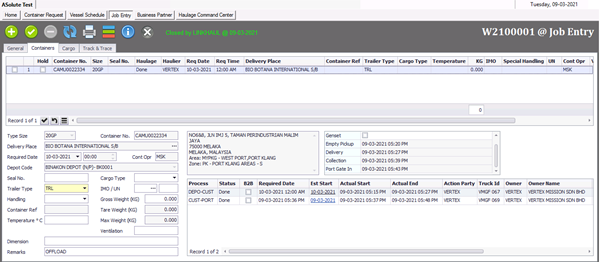
The picture above is a sample of completed container movement in ASolute. Eventually, once all the movement is completed in LinkHaul, the Job will be updated from In-progress to Completed.
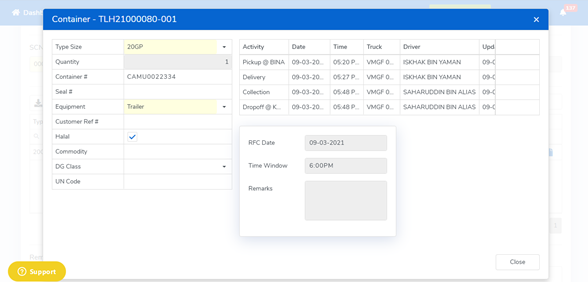
The picture above is the sample for the completed container movement in LinkHaul which corresponds to a completed Job. All Container must have been completed in order to get the Job to be completed in both platform.(LinkHaul & ASolute)
Comments
0 comments
Please sign in to leave a comment.