
In this user guide, we will briefly explain on how to navigate Linkhaul via the Web.
First, you will need to be a registered Customer user thru Linkhaul app. If you have yet to register, please refer to the "Customer Registration" user guide for detail.
Once registered and approved, shipper/consignee can login and access your containers movement in any way and at your fingertips via LinkHaul App or Web access.
For Web access:
Step 1: Login into Linkhaul Platform on the Web
To access the web page to login into your customer account you can:
Type "https://system.linkhaul.net/login" on your web browser to be redirected to our Linkhaul website.
Then you will be able to see this welcome page.
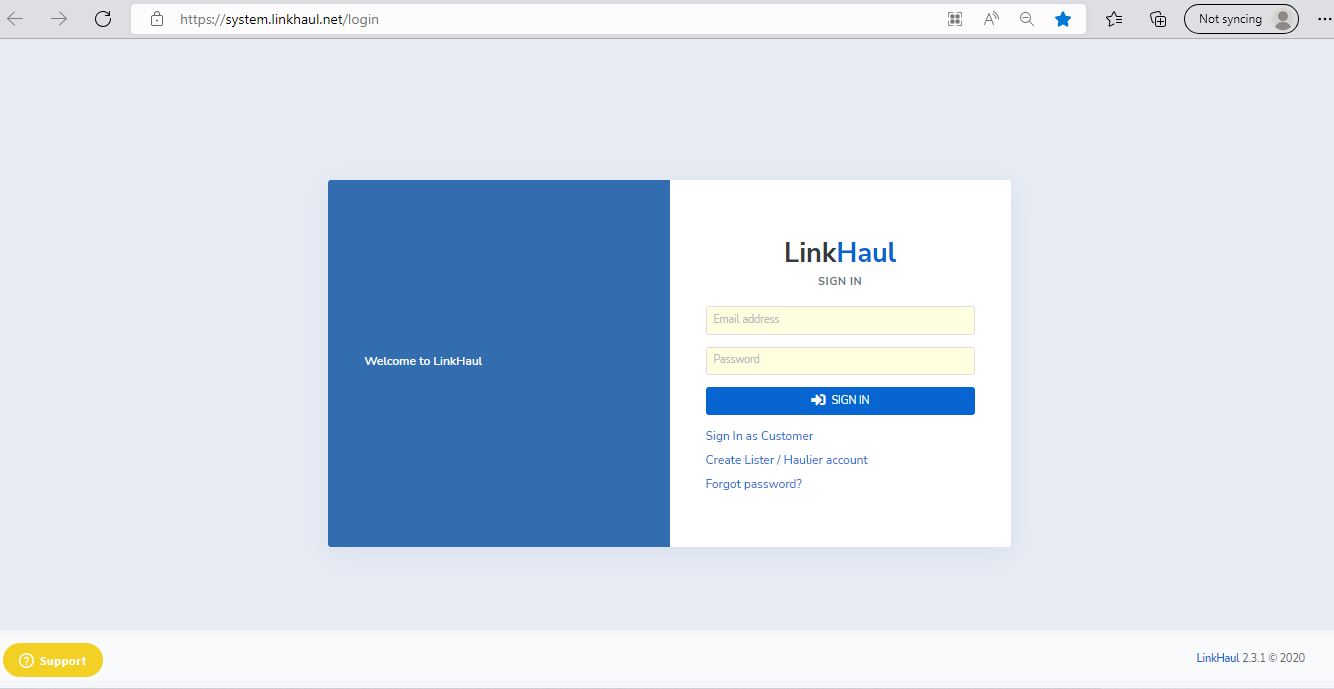
To login, click Sign in as Customer
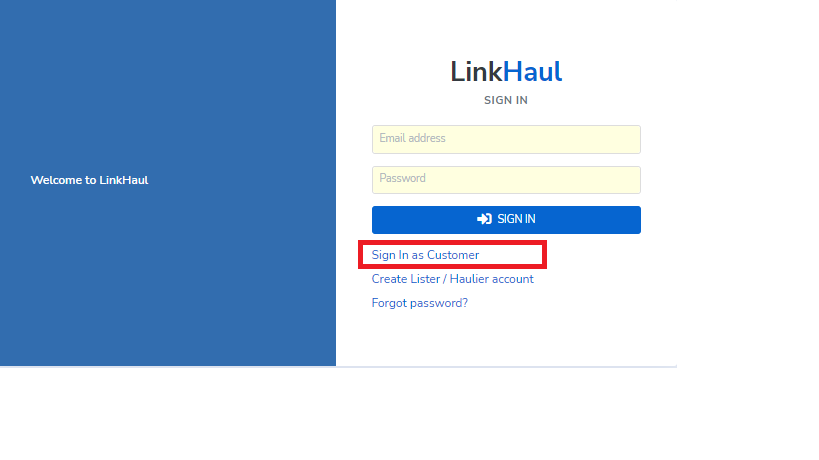
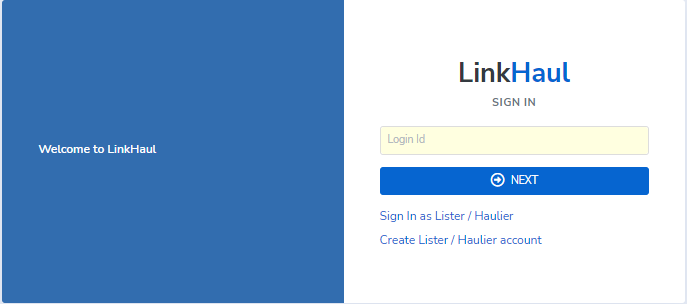
Next, enter your registered email address in the Login Id section, then click Next.
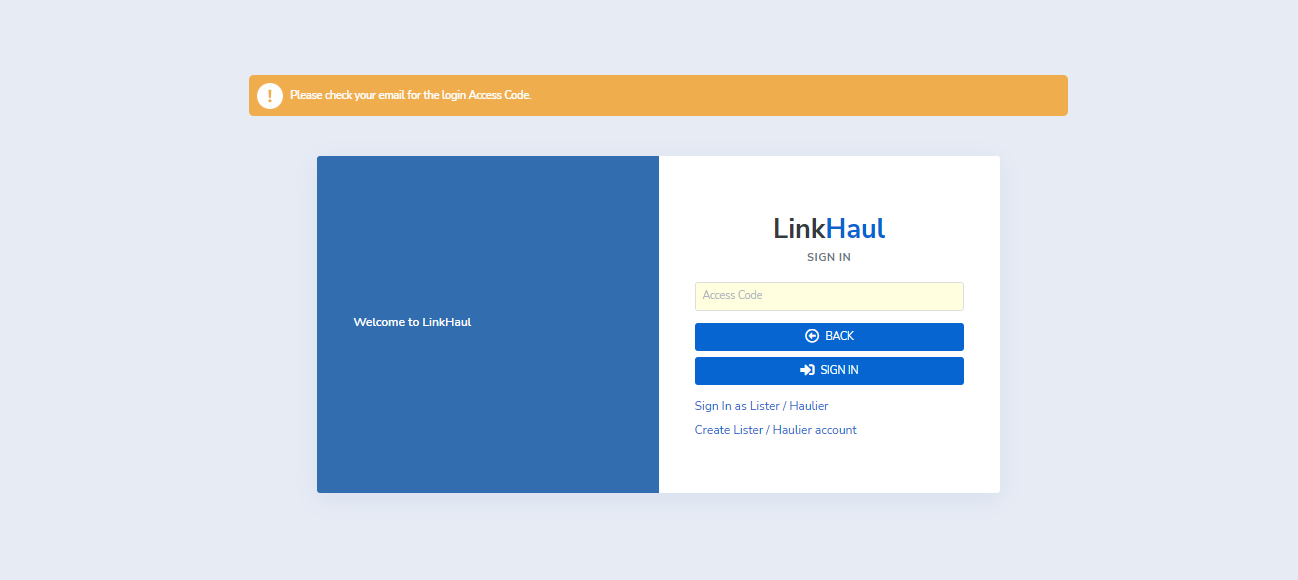
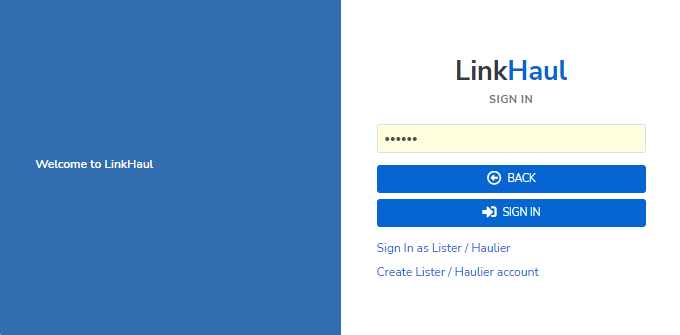
Then you are required to input your OTP login Access Code that can be obtained from your email, and click "SIGN IN" once enter the 6 digits OTP.
Once logged in, you will be able to see all your containers shown in your dashboard.
Note:
1. You may login on your web browser once you have verified your account. However you will not be able to view any job details until your account has been approved by the "Lister" that you have selected during the account creation process.
2. It is not necessary to sign out if you're not sharing your PC or mobile (new OTP is only needed if the user signed out).
Step 2: View container movement status on dashboard
There are two categories of job, in progress & completed.
Your ongoing container movements will be shown under In Progress while your completed container movements will be shown under Completed.
CHECK CONTAINER MOVEMENT STATUS
Click on the information icon marked by the red arrow as shown below to view your job details.
Then, you will be able to view your container movement status.
VIEW PROOF OF DELIVERY (POD)
Click on the paper icon marked by the red arrow as shown below to view your electronic Proof of Delivery (POD).
How to navigate "Your Containers" screen
In this screen, you can search for any specific word in the column header to look for your containers.
1. SEARCH BY QUERY BOX
You can use the Query box to search for your container number or booking/BL number. Go to the Query box on the top right corner, then key in your search attributes in the query.
As shown in the photo below, we're searching for a container number that starts with 'TEMU...", therefore type in TEMU in the query box:
Or search for any booking number by their booking or Bill of Lading (BL) number in the Query box:
2. SEARCH BY COLUMN HEADER
You may also search for your job thru any of the Column's search feature.
For searching the container number, simply enter part of the number in query box under the Container # header and the relevant containers with that number will be appeared for you.
Or search for your booking number in the Booking / BL # section as below:
Try to also search for other attributes such as delivery place or status:
Delivery place
Status
3. COLUMN HEADER SORTING
You can also sort your containers according to its required date, whether it is in ascending or descending order, for example try to double-click on your Status column header to sort all the pending pickup first followed by your pending delivery job:
BEFORE
AFTER
4. GROUP OR DRAG & DROP YOUR COLUMN HEADER FOR EASY VIEWING
a) GROUP YOUR CONTAINERS UNDER RESPECTIVE HAULIERS
You can group your containers based on the respective Column header (i.e. Status / Hauliers / Delivery Place & more).
An example, below is a list of all your containers:
Then, if you would like to group your containers based on their respective hauliers, right-click on the Haulier column, then click Group by This column
BEFORE
AFTER
You will then be able to see all containers grouped under their respective hauliers.
b) DRAG & DROP YOUR CONTAINERS UNDER RESPECTIVE HAULIERS
BEFORE
AFTER
VIEW COMPLETED CONTAINER STATUS
Just click on Completed tab again to view all your completed movements for easy reference with the same navigation features.
Please note that under the “Completed” section the platform only shows all containers that are completed within the past 7 days. This is to ensure better data flow efficiency on our platform and reduce unnecessary loading/waiting time.
If you would like to add another Lister or another "delivery place" / "shipper/consignee", you will have to add it thru the app and subject to Lister approval. Please refer to the Step 3 of "Customer Registration" user guide for detail.
Comments
0 comments
Please sign in to leave a comment.