
Link Haul Mobile Application for Driver
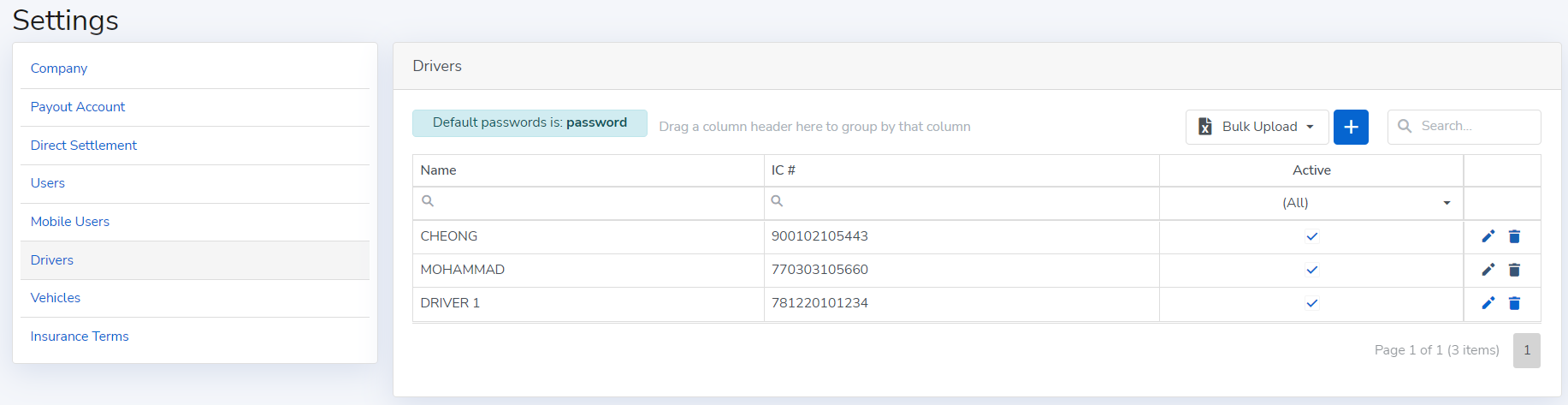
Haulier to setting up the Driver User ID
- Log into LinkHaul platform, go to Settings and click Drivers.
- Click "+" sign and adding new driver so that they could assigned for the job and access to the Driver App. Driver could then log in to the Driver App using their IC Number and password (default is "password").
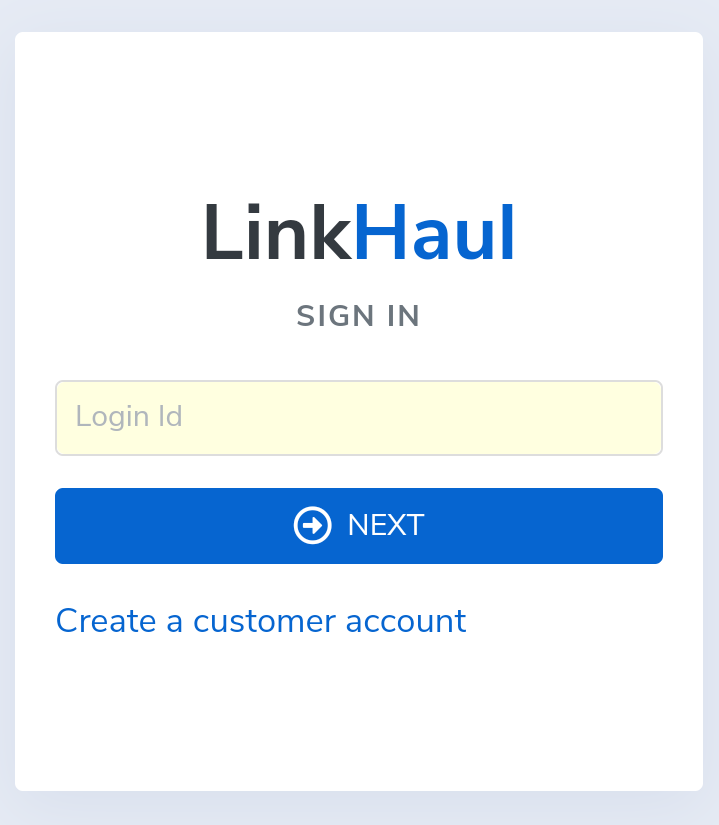
Driver App - Login Page
- Driver enters his IC number as the Login ID and password (default is "password") to login.
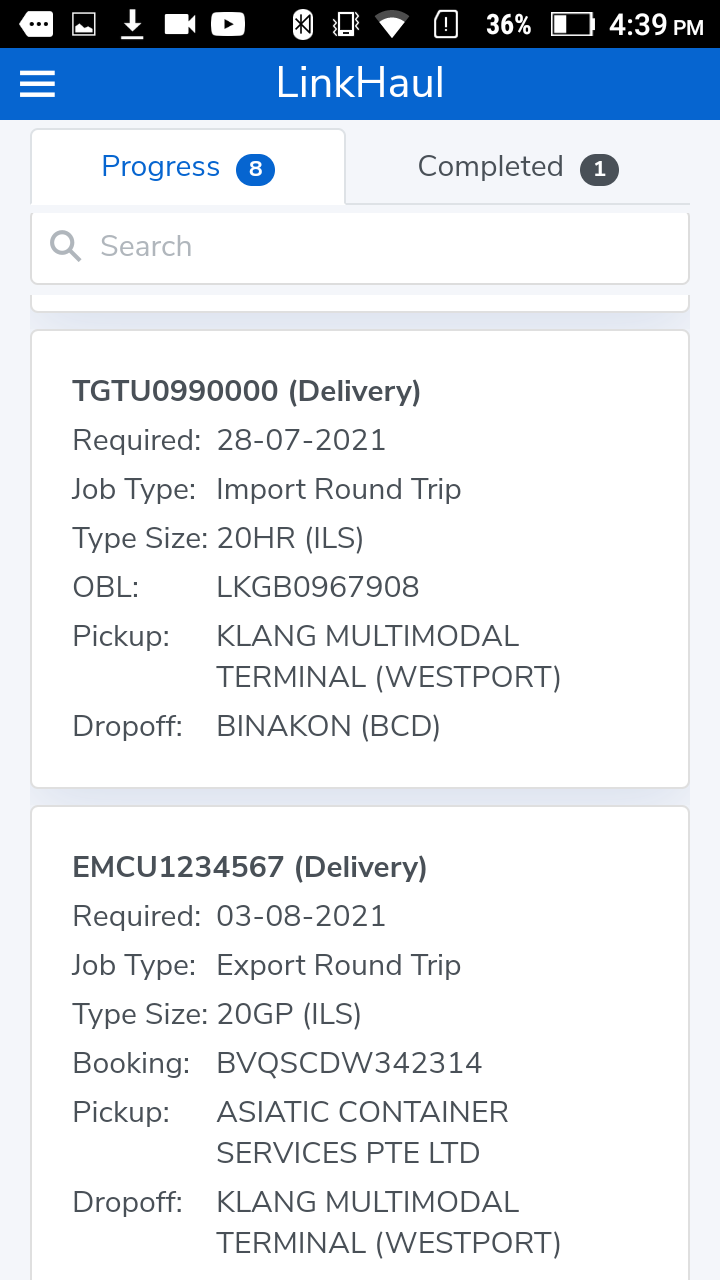
Driver App - Overview
- Jobs assigned to that particular driver will display in the grouping of "Progress" and "Completed".
- "Progress" are those jobs assigned that are still in progress and for that driver to operate and update accordingly (Pickup / Delivery / Collection / Dropoff).
- "Completed" are those assigned jobs that been completed for reference if needed.
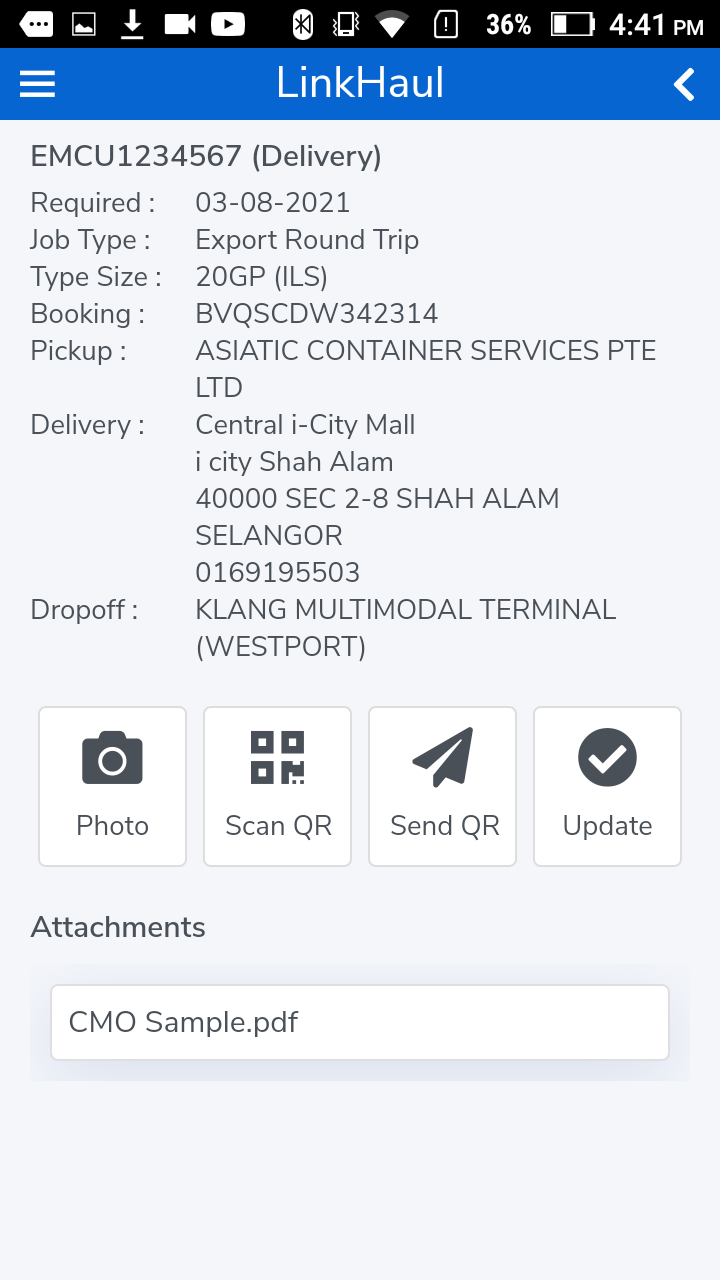
Driver App - Viewing additional details
- Selecting the specific job will go into job details where driver can view more job details and options for action.
- Photo - Press "photo" button for driver capture and upload container photo/ doc, Seal number & etc.
- Scan QR - Scanning the QR to confirm delivery or collection.
- Send QR - Driver can also resend the QR code to the consignee/shipper if they don't have it with them (only the registered consignee/shipper would able to receive).
- Update - Update the respective activity directly.
Comments
0 comments
Please sign in to leave a comment.